
Adding an Instagram feed to your Wix website is one of the smartest ways to boost engagement, build social proof, and keep your site visually fresh without constant manual updates. Whether you’re a business owner, creator, or brand, integrating Instagram helps you showcase real-time content and connect with visitors more effectively.
In this detailed guide, you’ll learn multiple ways to add Instagram feeds to Wix, including how to embed Instagram feeds on Wix websites using different methods—especially a powerful widget tool (Taggbox) for a seamless and professional result.
Why Add an Instagram Feed to Your Wix Website?
Before diving into the steps, let’s understand why add Instagram feed to Wix website matters:
✅ Boost Engagement
Visitors are more likely to interact with dynamic, real-time content, making your Wix Instagram feed more engaging.
✅ Build Social Proof
User-generated content and real posts increase trust and credibility when you embed Instagram feed on Wix.
✅ Keep Your Website Updated
Automatically display fresh content without manual uploads.
✅ Improve Conversions
Seeing real product usage or brand interactions encourages purchases when you add Instagram to Wix website.
Methods to Add Instagram Feed to Wix
There are three main ways to embed Instagram Wix:
- Using Wix’s built-in Instagram app
- Embedding Instagram posts manually
- Using a third-party widget tool (Recommended)
Method 1: Add Instagram Feed Using Wix App Market
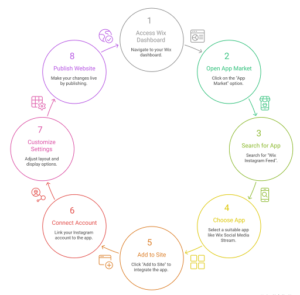
This is the easiest way to add Instagram to Wix using built-in tools.
Steps:
- Go to your Wix dashboard
- Click on “App Market”
- Search for Wix Instagram Feed
- Choose an app (like Wix Social Media Stream)
- Click Add to Site
- Connect your Instagram account
- Customize layout and display settings
- Publish your website
Limitations:
- Limited customization
- Basic design options
- Less control over branding
Method 2: Embed Instagram Posts Manually

This method works if you want to embed Instagram post on Wix, but not a full feed.
Steps:
- Open Instagram on desktop
- Select the post you want to embed
- Click the three dots (…)
- Select Embed
- Copy the embed code
- Go to Wix Editor
- Click Add → Embed Code → HTML iframe
- Paste the code
- Adjust size and position
Limitations:
- Only single posts (not full Instagram feed Wix)
- Time-consuming
- Not dynamic
Method 3 (Best): Add Instagram Feed Using Taggbox Widget
If you want a fully customizable, responsive, and visually appealing Wix Instagram widget, using Taggbox is the best option to embed Instagram feed on Wix website.
Step-by-Step Guide to Use Taggbox
Step 1: Create a Taggbox Account
- Visit the Taggbox website
- Sign up or log in
Step 2: Create a New Widget
- Click on “Create Widget”
- Choose Instagram as your source
Step 3: Connect Your Instagram Account
- Select connection type:
- Handle
- Hashtag
- Mentions
- Tagged posts
- Authorize your Instagram account
This step helps you connect Instagram feed to Wix easily.
Step 4: Moderate Your Content
- Filter out unwanted posts
- Approve only relevant content
- Keep your feed clean and brand-focused
Step 5: Customize Your Feed
- Choose layout (grid, carousel, masonry)
- Adjust colors, fonts, and themes
- Add branding elements
This improves the look of your Instagram feed on Wix.
Step 6: Generate Embed Code
- Click on Publish
- Select Website Embed Code
- Copy the provided code
Step 7: Add Feed to Wix Website
- Open Wix Editor
- Click Add → Embed Code → HTML iframe
- Paste the Taggbox embed code
- Resize and position the feed
This is the final step to embed Instagram feed on Wix.
Step 8: Publish Your Website
- Click Publish
- Your Instagram feed is now live
Now you have successfully learned how to add Instagram feed to Wix website.
Pro Tips to Optimize Your Instagram Feed
Use Hashtag Campaigns
Encourage users to post using your branded hashtags.
Display User-Generated Content
Build trust by showcasing real customer experiences when adding Instagram to Wix.
Keep It Clean
Moderate content regularly to maintain quality.
Match Website Design
Customize feed colors and layout to align with your branding for better Wix Instagram integration.
Common Issues & Fixes
❌ Feed Not Loading
- Check embed code
- Ensure Instagram account is connected
❌ Layout Issues
- Adjust iframe size in Wix editor
❌ Slow Loading
- Optimize widget settings
- Limit number of posts displayed
Final Thoughts
Adding an Instagram feed to your Wix website is no longer just an aesthetic choice—it’s a powerful marketing tool. While Wix offers basic options, using a widget tool like Taggbox gives you complete control, better design, and higher engagement potential.
If you’re serious about improving your website’s performance, branding, and user experience, the Taggbox method is the way to go.