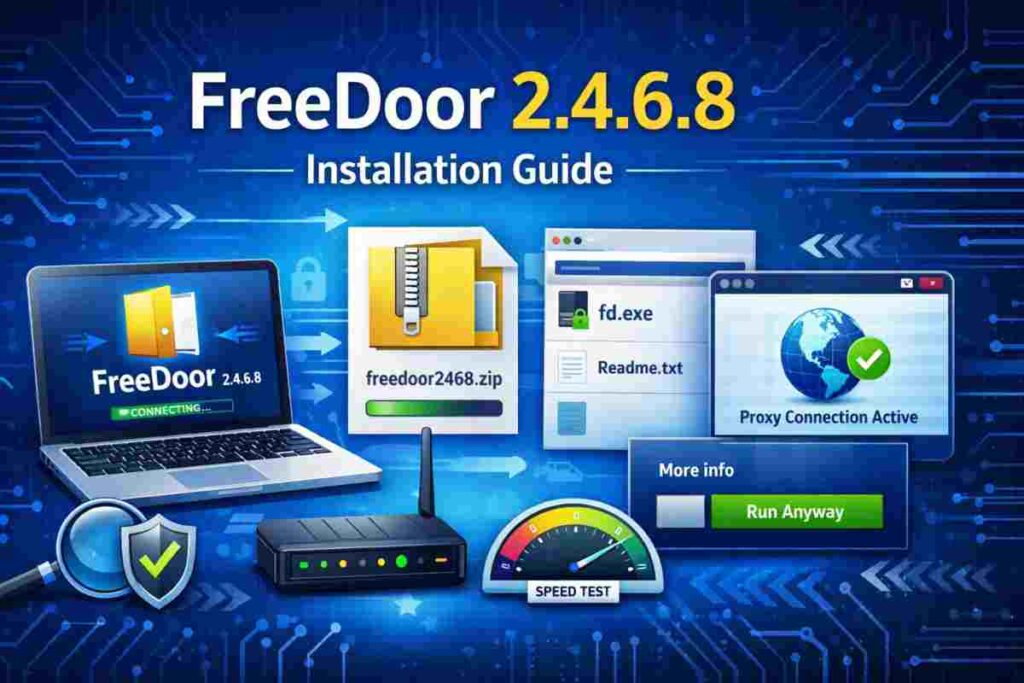
FreeDoor 2.4.6.8 is a small Windows proxy tool built by Dynamic Internet Technology. It helps users open websites that may not load on regular connections. The program routes traffic through the DynaWeb network and works without a full setup process. You just download it, extract the files, and run the main executable file.
This tool fits users who need a simple proxy solution that runs on older computers or low-resource systems. It also suits people who want a portable tool that can run from a folder or USB drive without changing system files.
FreeDoor runs with very low hardware needs. It works on Windows XP through Windows 11. It needs only basic RAM, small storage space, and a stable internet connection.
The setup process is quick. Download the ZIP file from a trusted source. Extract the files. Open fd.exe. Allow the program if Windows shows a security alert. Once the status indicator turns green, the connection is ready to use.
What is FreeDoor 2.4.6.8?
FreeDoor 2.4.6.8 is a portable proxy application created by Dynamic Internet Technology (DIT). It allows users to route their internet traffic through the DynaWeb network to open websites that may not load on a normal connection. The software focuses on simplicity. There is no complex setup process and it can run directly after extraction.
Unlike traditional VPN software, FreeDoor does not require a full system setup. It runs as a standalone executable file, which makes it useful for quick access needs or temporary proxy use. Because of its small size and low resource usage, it can run smoothly even on older computers.
Main Features of FreeDoor Proxy Tool
FreeDoor includes several practical features:
- Portable design – runs from any folder or USB drive
- Lightweight usage – works with minimal RAM and CPU usage
- No installer required – runs directly from the executable file
- Windows compatibility – supports a wide range of Windows versions
- DynaWeb routing system – connects through proxy servers automatically
Supported Operating Systems
FreeDoor 2.4.6.8 supports most Windows environments:
- Windows XP, Vista, 7, 8, 10, and Windows 11
- Works on both 32 bit and 64 bit systems
This broad compatibility makes it a practical option for both old and newer Windows machines.
FreeDoor 2.4.6.8 System Requirements
FreeDoor 2.4.6.8 runs on basic Windows hardware. It does not need high system power or extra components. This makes it a practical choice for older PCs and low-spec machines. Before running the tool, check that your system meets the basic hardware and network needs listed below.
Minimum Requirements
Your system should meet these basic specifications:
| Component | Minimum Requirement |
|---|---|
| Processor | 1 GHz processor |
| RAM | 512 MB |
| Storage | 100 MB free space |
| Internet connection | Basic active connection |
These specifications allow the tool to run and connect to proxy servers without major issues.
Recommended Setup
For smoother performance, these settings are better:
| Component | Recommended Specification |
|---|---|
| RAM | 1 GB or more |
| Internet connection | Stable broadband connection |
| Security software | Updated antivirus protection |
Extra RAM helps maintain stable proxy sessions. A reliable connection helps avoid disconnects. Updated antivirus protection helps detect unsafe files and keeps the system protected while using proxy software.
How to Download FreeDoor 2.4.6.8 Safely
Downloading FreeDoor 2.4.6.8 from the right source is important. Since the tool is often shared as a ZIP archive, users should confirm the file source and scan it before opening. A careful download process helps avoid corrupted files or bundled threats.
Where to Download FreeDoor 2.4.6.8
Follow these steps to find a clean copy:
- Search for FreeDoor 2.4.6.8 or freedoor2468.zip on reputable software repositories.
- Avoid unknown file sharing pages with unclear file origins.
- Check the ZIP file size. It should usually fall between 5 MB and 10 MB.
- Confirm the file name matches common naming formats like:
- freedoor2468.zip
- FreeDoor_2.4.6.8.zip
- Read the download page notes to confirm the version number.
Safety Checks Before Opening Files
Before extraction, run a few quick checks to keep your system safe.
Antivirus Scan Steps
- Right-click the downloaded ZIP file.
- Select Scan with Microsoft Defender or your installed antivirus.
- Wait for the scan report.
- Continue only if no threats are found.
- Update virus definitions if your antivirus shows outdated protection.
File Verification Tips
- Confirm the file extension is .zip.
- Check file properties to verify size.
- Extract only if the archive contains fd.exe and basic text files.
- Delete the file if you see unknown executables.
- Keep a backup copy of the original archive in case you need to repeat the process.
These small checks reduce risk and help ensure a clean setup process.
How to Install FreeDoor 2.4.6.8 (Step-by-Step)
FreeDoor 2.4.6.8 does not follow a traditional setup process. There is no setup wizard or system modification. The tool runs as a portable program. You only need to download, extract, and launch the main file. Follow the steps below to complete the process correctly.
Step 1 Download the ZIP File
Start by getting the correct ZIP archive.
- Search for FreeDoor 2.4.6.8 from a reliable software source.
- Download the ZIP archive to your Desktop or Downloads folder.
- Confirm the file size is normally between 5 MB and 10 MB.
- Scan the file with your security software.
- Continue only after the scan shows the file is clean.
Step 2 Extract Files
After downloading, the next step is file extraction.
Follow one of these methods:
Using Windows extractor:
- Right-click the ZIP file.
- Click Extract All.
- Select a location such as Desktop or a new folder.
- Click Extract.
Using WinRAR or 7-Zip:
- Right-click the ZIP file.
- Select Extract Here or Extract to freedoor2468 folder.
- Wait until extraction finishes.
- Open the extracted folder.
After extraction, you should see the main file fd.exe along with small text files.
Step 3 Run fd.exe
Now launch the program.
- Double-click fd.exe.
- Wait a few seconds while the tool starts.
- Allow network access if Windows asks.
- The program window should open without any setup screens.
- Let the tool connect automatically.
Since the tool is portable, it does not add entries to installed programs.
Step 4 Handle Windows SmartScreen Warning
Some systems may show a Windows protection message. This happens because the file is not widely signed.
Follow these steps if this appears:
- Click More info.
- Click Run anyway.
- Allow the file to open.
- Add the file to antivirus allowed items if blocked.
- Allow access through firewall if prompted.
This warning does not always appear. It depends on system security settings.
Step 5 Confirm Connection Status
After launch, confirm the proxy connection.
- Look for the connection status indicator.
- A green indicator usually means the connection is active.
- Wait about 20 to 30 seconds for connection setup.
- Open a browser and try loading a website.
- If pages load normally, the tool is working.
If the connection does not start, restart the tool and check your internet connection.
FreeDoor 2.4.6.8 Configuration Guide
FreeDoor 2.4.6.8 usually works without manual setup. The tool selects proxy servers automatically after launch. Still, knowing the basic settings helps if the connection does not work as expected or if you want more control.
Default Proxy Settings
FreeDoor starts in automatic proxy mode. This allows the software to select the best available server.
Default behavior includes:
- Auto server selection after launch
- Automatic connection attempt
- No manual input needed
- Background proxy routing
- Status indicator showing connection state
Most users can stay with these default settings. If websites do not load, switching to manual settings may help.
Manual Configuration Steps
If automatic mode fails, try manual setup.
Follow these steps:
- Open FreeDoor settings.
- Switch proxy mode from Auto to Manual.
- Enter the local proxy address as 127.0.0.1.
- Set the port number to 8580.
- Save the settings.
- Restart the tool.
- Test the connection again.
Local proxy settings allow your browser to send traffic through the FreeDoor connection.
Browser Setup Tips
Sometimes you may need to adjust browser proxy settings.
Try these actions:
- Open browser network settings.
- Find proxy configuration options.
- Select manual proxy setup.
- Enter 127.0.0.1 as the address.
- Enter 8580 as the port.
- Save changes.
- Restart the browser.
If pages still fail to load, return settings to automatic mode and restart FreeDoor.
How to Test FreeDoor Connection
After running FreeDoor 2.4.6.8, testing the connection helps confirm the proxy is working correctly. A quick check can show whether traffic is routing through the tool and whether the connection remains stable during use.
Connection Verification Steps
Use these steps to confirm the connection:
- Open your preferred web browser.
- Visit a few different websites.
- Check whether pages load without errors.
- Watch the FreeDoor status indicator.
- Confirm the indicator shows an active connection.
- Keep the tool running for several minutes.
- Try refreshing pages to confirm consistency.
If pages fail to load, restart the tool and test again. You can also switch proxy mode and repeat the check.
Performance Expectations
Proxy tools can slightly affect browsing speed. This is normal behavior.
Things you may notice:
- Pages may load a little slower than usual.
- Speed may drop by around 10 to 20 percent.
- Some sites may take extra seconds to respond.
- Connection should remain stable during normal browsing.
For stability checks, let FreeDoor run for about 10 to 15 minutes. If browsing stays consistent without disconnects, the setup is working correctly.
FreeDoor 2.4.6.8 Troubleshooting Guide
FreeDoor 2.4.6.8 usually runs without problems, but some users may face minor technical issues. Most problems can be fixed with simple checks and small adjustments. Use the problem and solution guide below to fix common errors.
FreeDoor Not Opening
Problem:
The program does not start after double-clicking fd.exe.
Solution:
- Extract the ZIP file again.
- Make sure the download is complete.
- Run the file as Administrator.
- Check if security software blocked the file.
- Download a fresh copy if the file looks corrupted.
Connection Problems
Problem:
FreeDoor opens but websites do not load.
Solution:
- Check your internet connection.
- Restart the FreeDoor program.
- Allow the tool through Windows Firewall.
- Switch from Auto mode to Manual proxy mode.
- Try reconnecting after a few minutes.
Antivirus Detection Issues
Problem:
Security software flags fd.exe as suspicious.
Solution:
- Confirm the file came from a clean source.
- Run a full system scan.
- Add fd.exe to antivirus allowed files.
- Allow the program in firewall settings.
- Restart the tool after making changes.
Some proxy tools trigger alerts due to network routing behavior rather than actual threats.
Slow Proxy Speed Fix
Problem:
Browsing feels slower while FreeDoor is active.
Solution:
- Restart the proxy connection.
- Close unused background apps.
- Switch servers if the option exists.
- Check your base internet speed.
- Test again after reconnecting.
Small speed drops are normal with proxy routing, but stable browsing should still be possible.
FreeDoor Safety Tips Before Using
FreeDoor 2.4.6.8 is simple to run, but basic safety habits help reduce risk. Since it routes traffic through proxy servers, users should take a few precautions before regular use. A few minutes of preparation can help prevent security problems later.
Safe Usage Practices
Follow these safety habits before using the tool:
- Download FreeDoor only from trusted software libraries.
- Avoid modified versions shared on unknown pages.
- Test the program in a virtual machine (VM) if possible.
- Use it first on a secondary system if available.
- Avoid logging into banking portals or other sensitive accounts while using the proxy.
- Close the tool when not needed.
Running the program in a VM allows testing without affecting your main system. This is helpful if you want to check behavior before regular use.
Security Recommendations
Simple security steps can make usage safer:
- Keep your antivirus updated with recent definitions.
- Run quick scans after downloading the file.
- Allow FreeDoor through firewall only when needed.
- Monitor firewall alerts related to the program.
- Keep Windows security settings active.
Regular updates help security tools detect unwanted behavior. Basic monitoring of antivirus and firewall alerts can help you react quickly if something unusual happens.
Pros and Limitations of FreeDoor 2.4.6.8
FreeDoor 2.4.6.8 offers a simple way to route internet traffic through proxy servers without heavy system usage. At the same time, it has some practical limits users should understand before regular use. The table below shows a clear comparison.
Pros and Cons Comparison
| Advantages | Limitations |
|---|---|
| Small file size with low resource usage | Speed may drop during proxy use |
| Runs without a traditional setup process | Limited advanced security features |
| Works on older Windows systems | May trigger security alerts |
| Portable design allows use from USB | No official frequent updates |
| Automatic proxy connection | Some servers may respond slowly |
| Simple interface with minimal controls | Not built for sensitive online activity |
Pros
FreeDoor works well for users who want a simple proxy tool without complex setup. Its portable design allows quick use without changing system settings. The software also runs well on low-spec computers.
Cons
Users may notice slower browsing speeds due to proxy routing. Some security tools may flag the executable because of its network behavior. It is better suited for basic browsing rather than private account access or critical tasks.
FAQs About FreeDoor 2.4.6.8 Installation
Below are answers to common questions users ask before and after setting up FreeDoor 2.4.6.8. These quick answers can help solve confusion and improve setup success.
Does FreeDoor require installation?
No. FreeDoor does not need a traditional setup process. The program works as a portable application. You only need to download the ZIP file, extract it, and run fd.exe. No setup wizard appears and no program files are added to the Windows installed apps list.
Is FreeDoor safe to use?
FreeDoor can be safe if you download it from a reliable software source and scan the file before use. Since it routes traffic through proxy servers, avoid using it for private accounts or financial activity. Keeping your antivirus active and updated adds another layer of protection.
Why does Windows block fd.exe?
Windows may show a SmartScreen warning because the file is not widely recognized or digitally signed. This does not always mean the file is unsafe. You can allow the file by clicking More info and then Run anyway if you trust the source. Always scan the file first.
Can FreeDoor run on Windows 11?
Yes. FreeDoor 2.4.6.8 supports Windows XP through Windows 11. It works on both 32 bit and 64 bit systems. Because the tool has low system requirements, it usually runs without problems on modern Windows versions.
Why is FreeDoor running slow?
Speed drops can happen because proxy routing adds extra steps between your device and the website. To improve performance:
- Restart the tool
- Check your base internet speed
- Close background applications
- Try reconnecting
Small speed changes are normal when using proxy tools.
How do I update FreeDoor?
FreeDoor does not include an automatic update feature. To update, you need to download a newer version manually when available. Remove old files and extract the newer version into a fresh folder before running it.
Does FreeDoor work without configuration?
Yes. FreeDoor normally works with default automatic proxy settings. Most users do not need to change anything. Manual settings are only needed if the connection fails or websites do not load.
Final Setup Checklist
Before you start regular use, review this quick checklist to confirm everything is working correctly. This helps confirm the setup process is complete and the proxy connection is active.
FreeDoor 2.4.6.8 setup checklist:
- Download file verified from a trusted source
- ZIP archive scanned with antivirus
- Files extracted to a clean folder
- fd.exe launched without errors
- Security alerts allowed if shown
- Connection indicator showing active status
- Websites tested in your browser
- Proxy settings checked if needed
- Manual settings adjusted if auto mode failed
If all items above are complete, FreeDoor should be ready for normal use. If something does not work, repeat the steps or review the troubleshooting section for quick fixes.